Getting on board with Liquid Investigations #
Install an Authenticator on your mobile #
Enable Automatic Time Sync settings on phone #
Before installing an authenticator, please enable the automatic time sync on your mobile phone or other device.
Here is how you can do it on your Iphone: Go to Settings > General > Date & Time > Set Automatically
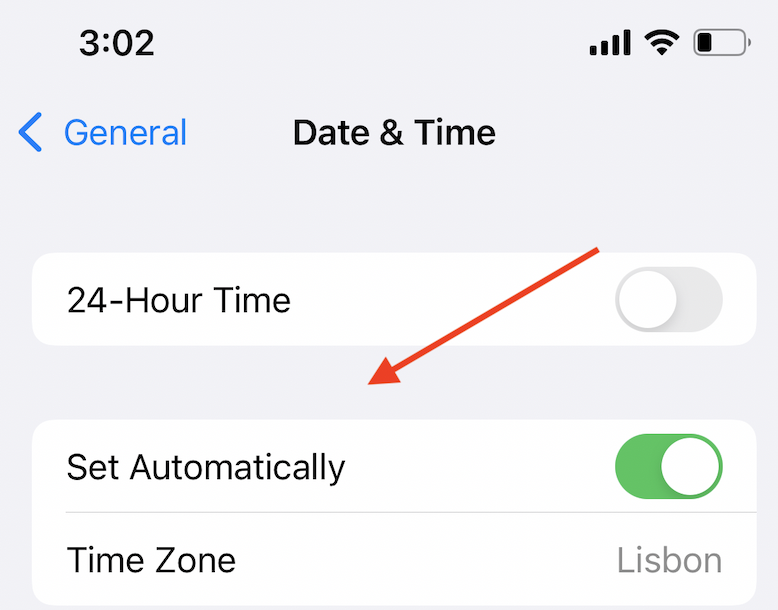
Here is how you do it on your MAC OS:
Open the Date & Time Preferences and check the the 'set time zone automatically using current location' box
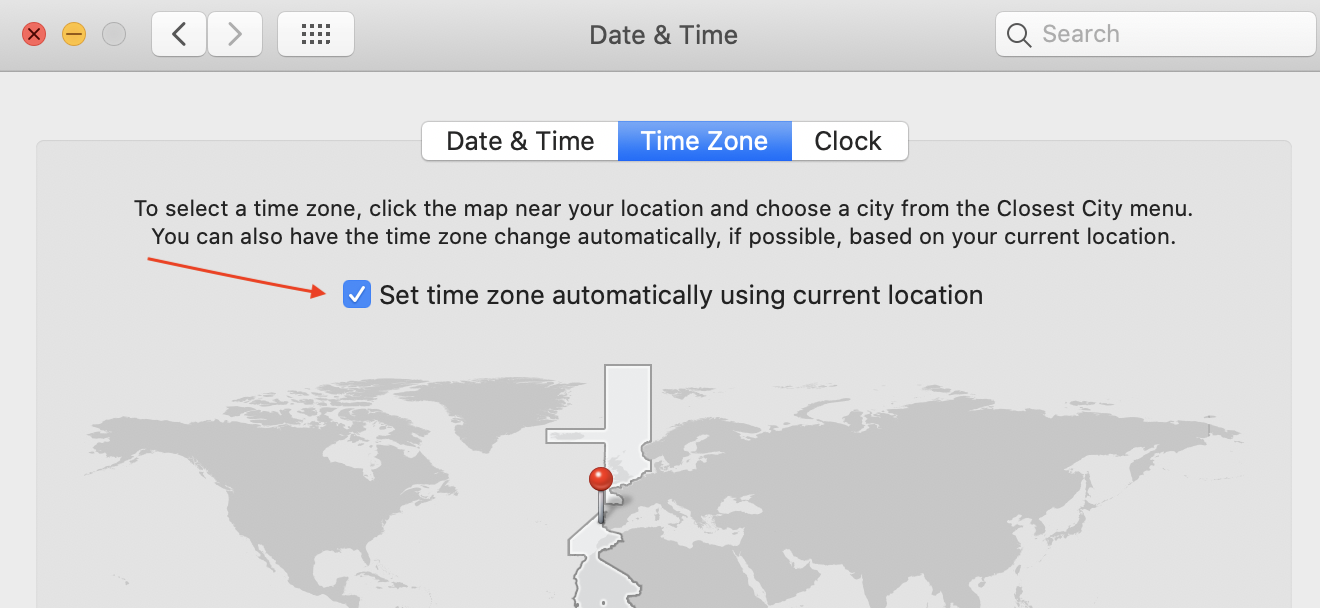
Additionally please check your time settings by opening https://time.is/ on the device that has the authenticator and see the text "Your time is exact!" and error under 5 seconds
Install an Authenticator on your phone #
As first time users logging into the Liquid Investigations platform, you should enable a 2FA authenticator on your mobile device! You will need this authenticator to scan a QR code that will help you login into your Liquid Investigations account. Our recommendations are:
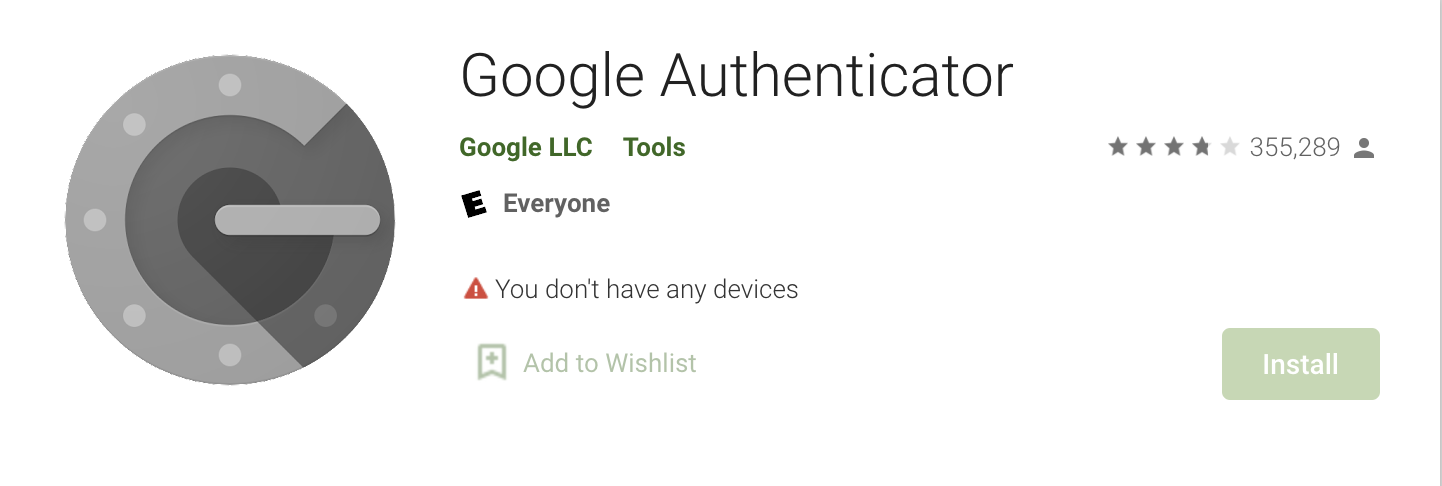
The Google Authenticator app: https://play.google.com/store/apps/details?id=com.google.android.apps.authenticator2&hl=en&gl=US
OR
The Duo Mobile app: https://play.google.com/store/apps/details?id=com.duosecurity.duomobile&hl=en&gl=US
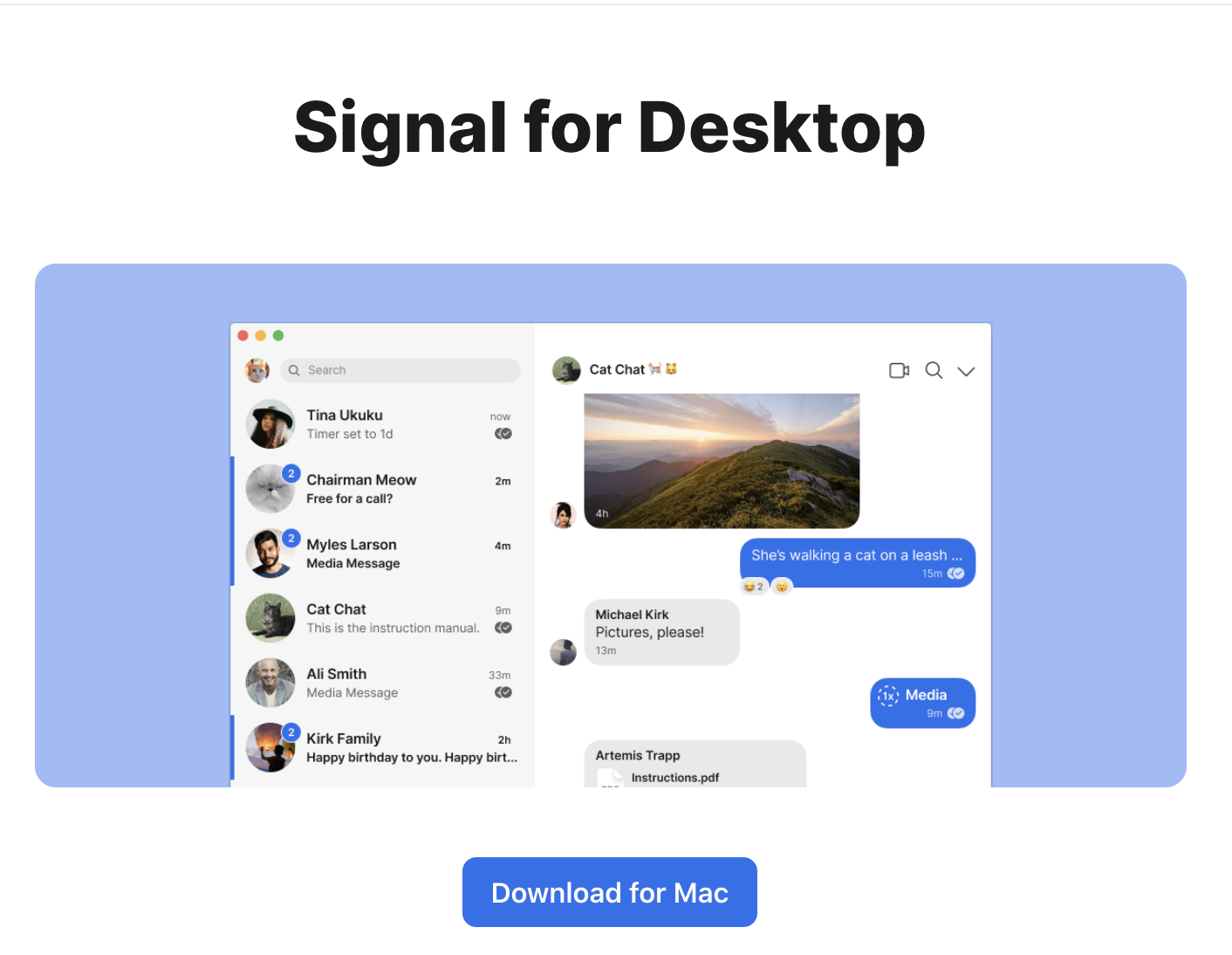
Install Signal Desktop on laptop: #
https://signal.org/en/download/
Disable Signal Link Previews #
Make sure to disable link previews in both Signal Desktop and also in Signal Mobile! https://support.signal.org/hc/en-us/articles/360022474332-Link-Previews
Invite Link #
As a new user, you will get your Liquid investigations account credentials (username and one time onboarding URL) via Signal desktop chat.
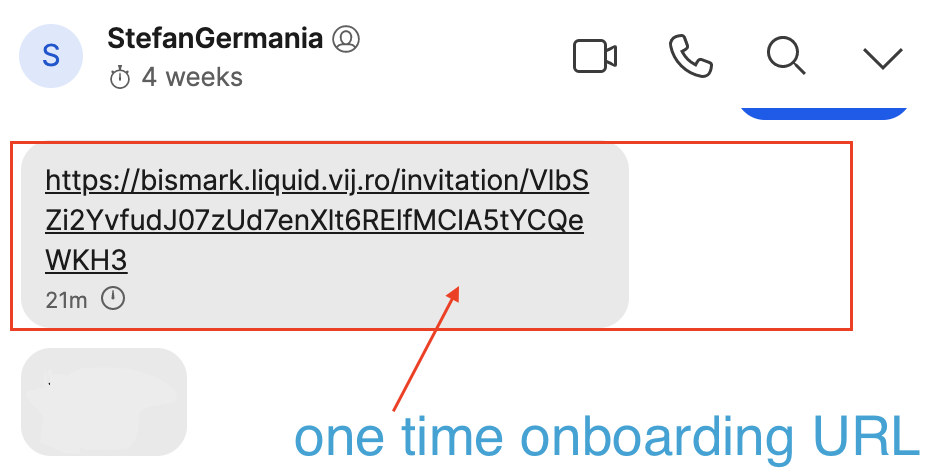
This URL is time sensitive, so please make sure to set up your account in 30 minutes from the moment it was generated. Otherwise the link will expire.
The URL is single-use, meaning that once the link is opened, it cannot be used in other browsers, and must be used in that particular browser, so it's advisable not to click on it unless ready to use it to set up the Liquid account.
Copy/Paste to Open Link in Private Browsing/Incognito.
Open Link and Create Account #
Clicking on the URL will take you to the form below. You will maintain the created username but should create your own password (make sure you input strong passwords, combining numbers and letters).
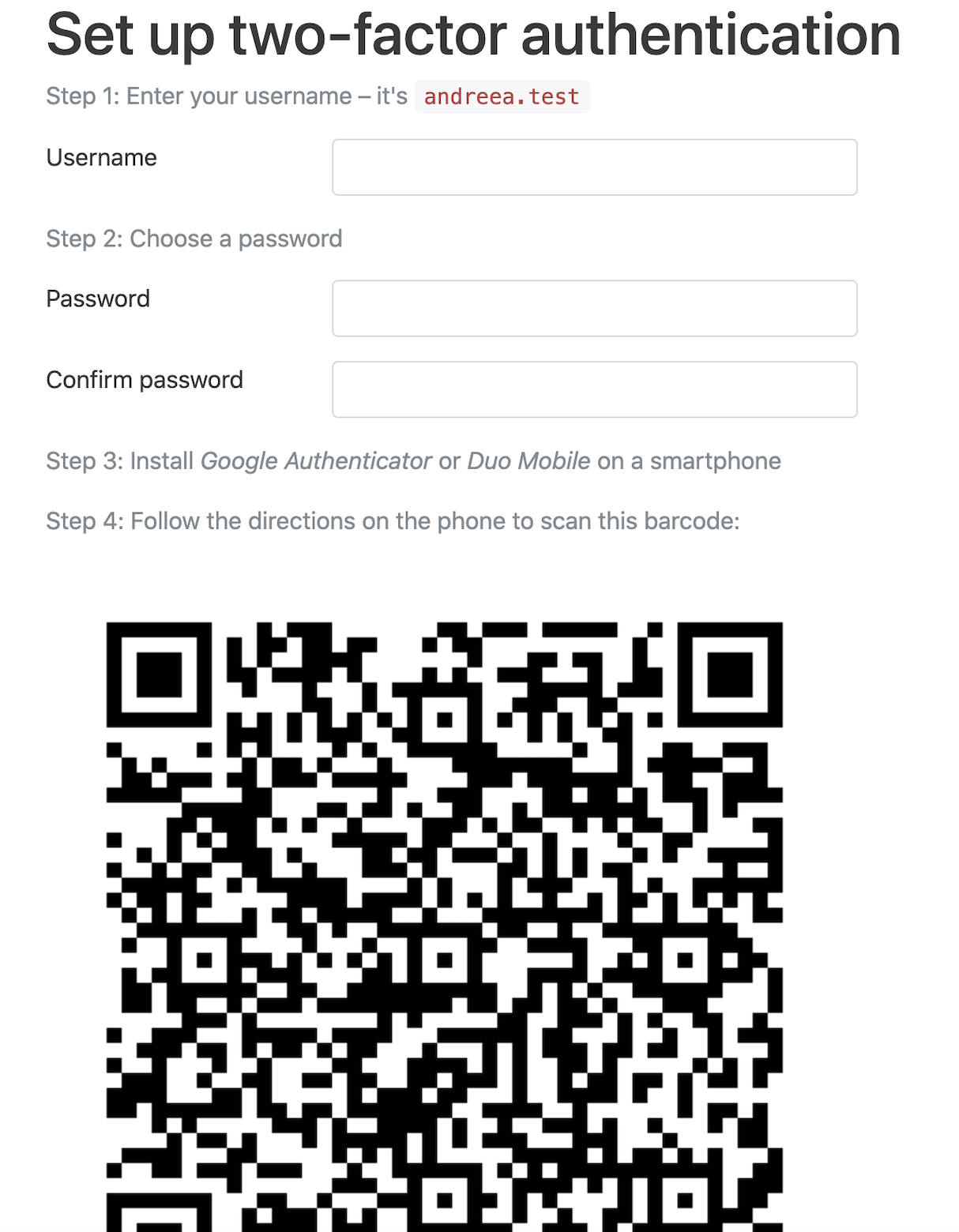
Next, you will be asked to scan a QR code with your 2FA mobile app (Google Authenticator or Duo Mobile). Once you do so, the 2FA app will generate an OTP token.
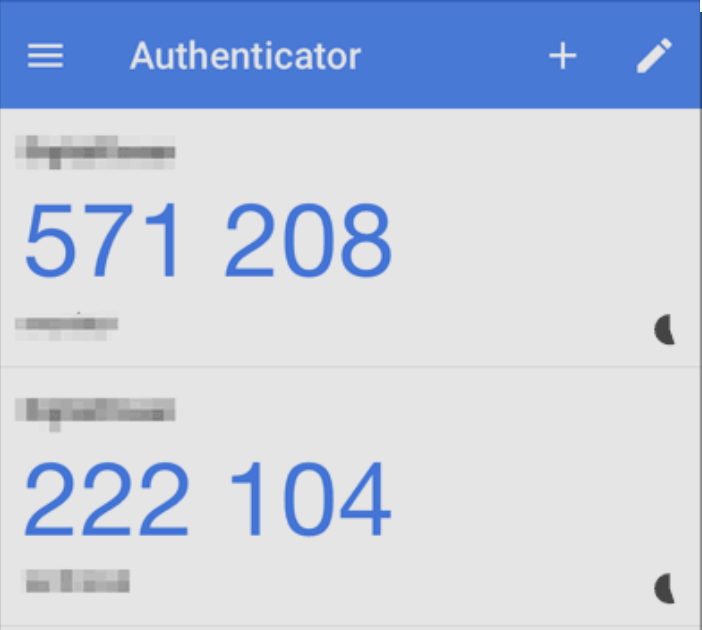
To finalize the account creation process you will then be prompted to also enter your 6 digit OTP authentication token into the OTP form field and press the Login button.
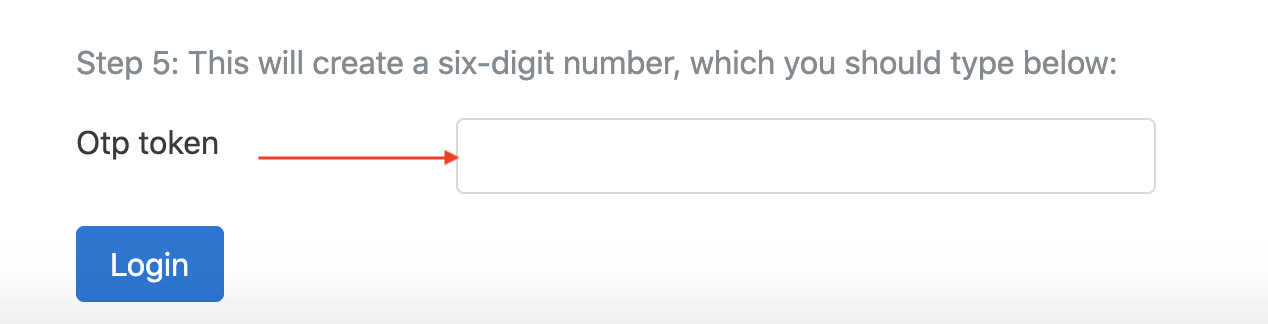
You will receive a confirmation that your verification was successful.
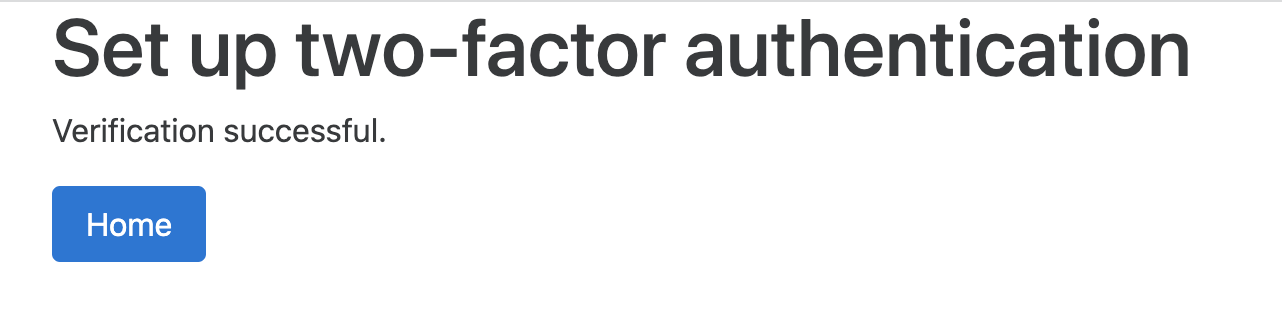
Once you hit ‘Home’ you will be able to access the Liquid Investigations apps bundle.
Login #
Login by typing your username, password and TOTP token (if two-factor authentication is enabled). After a predefined time (by default 12 hours, configurable, can be disabled) the system will automatically log you out.
Back to our detailed User Guide.